// Step by step
Create a Wallet
Make a key in your browser, choose your party hint and create your party.
The Wallet page is where you make your key, create your party and sign in. Open it with Sign in in the header (Unlock when a key on the device is locked). Making a key takes five steps, numbered along the top: Phrase, Check, Party hint, Keep and Top up, which reads Create on a network that charges nothing.
Write Down Your Recovery Phrase
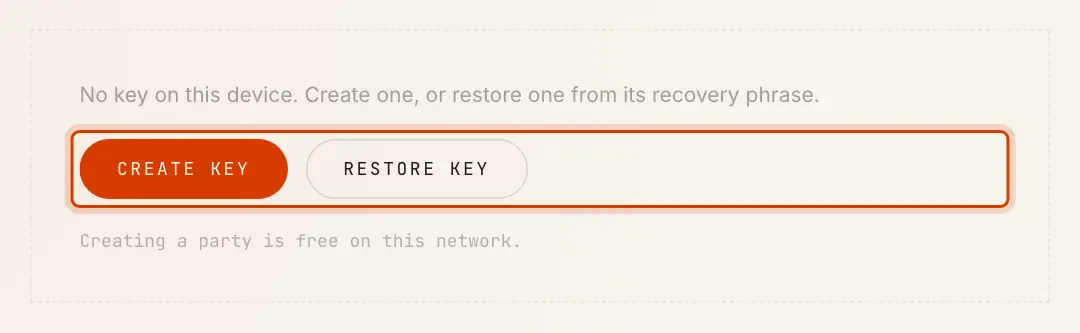
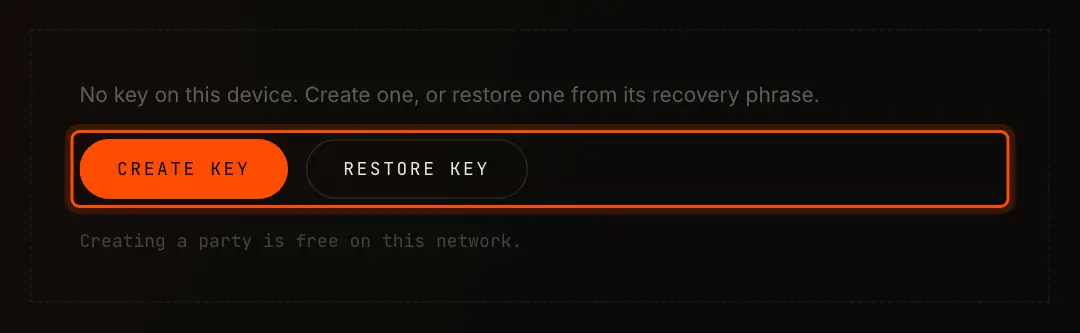
- Select Create key.
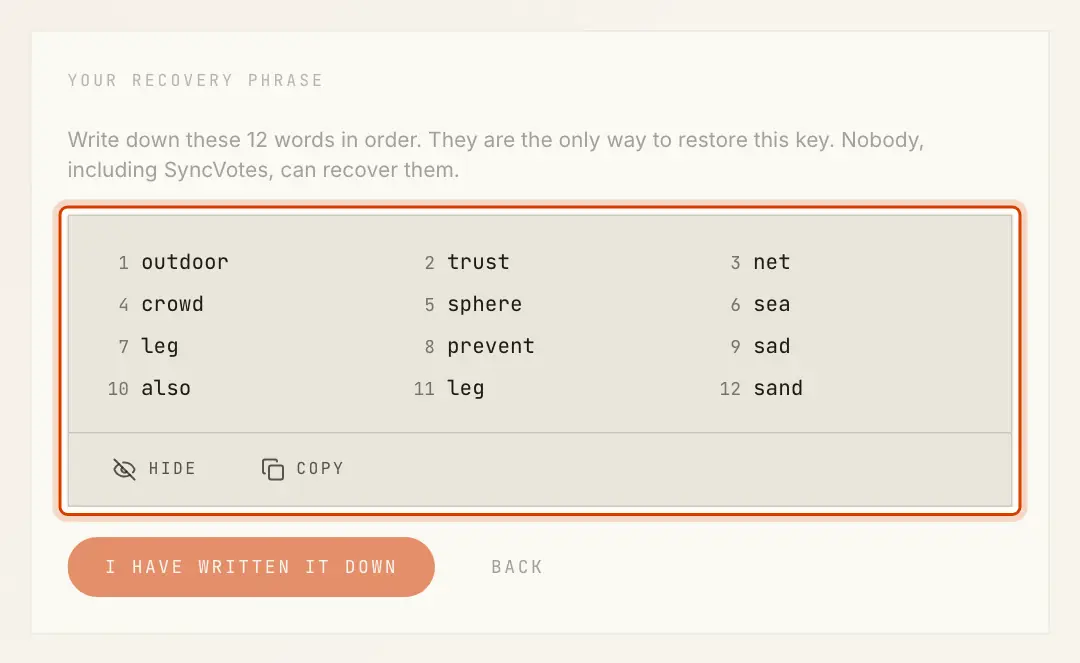
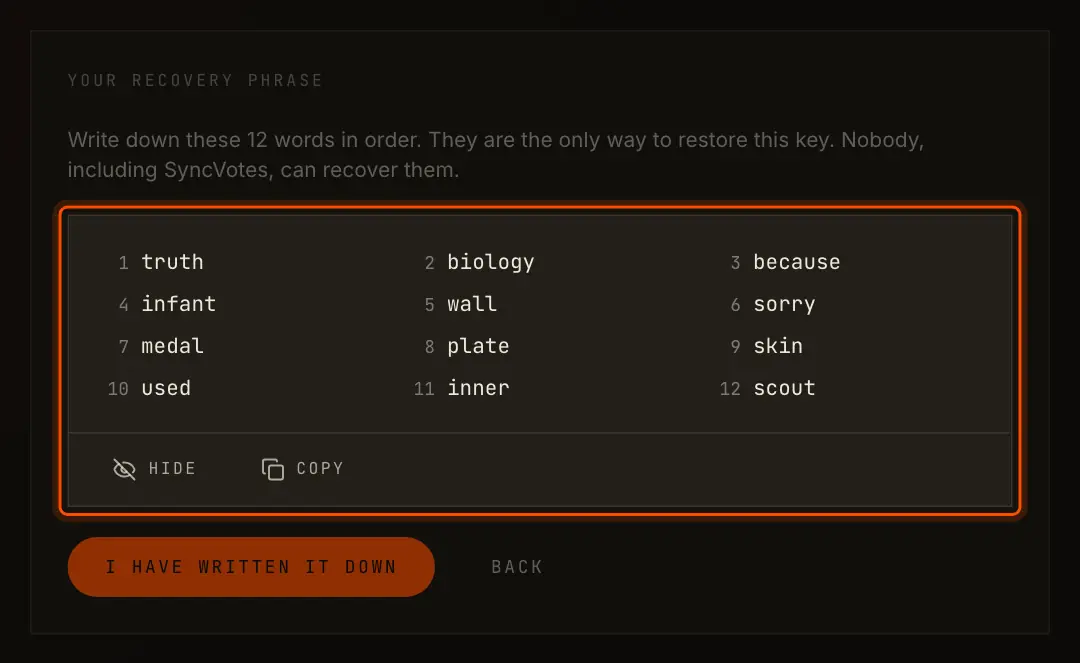
- Select Reveal. The app shows 12 numbered words. Copy puts them on your clipboard and Hide covers them again.
- Write the words down in order and keep them somewhere safe and offline.
- Select I have written it down. It works once the words have been revealed.
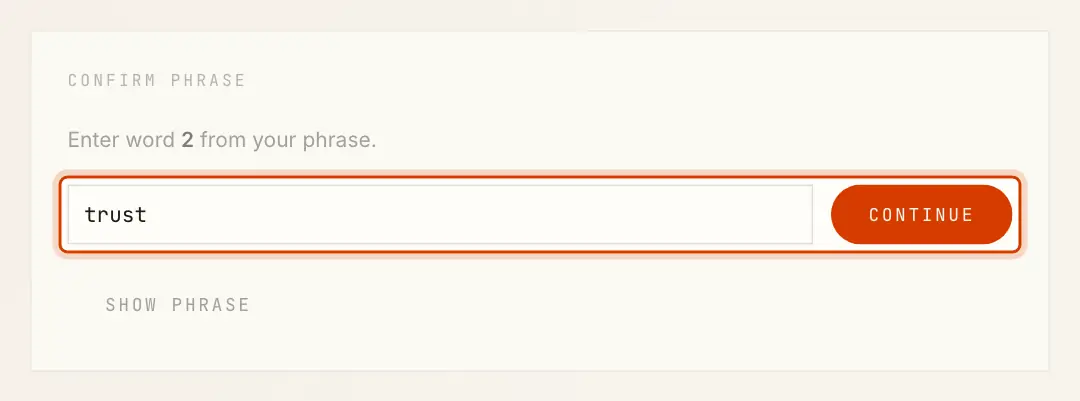
Next, asks for one word of it, for example word 7. Type it and select Continue. A wrong word shows , and Show phrase takes you back to the words.
Choose a Party Hint
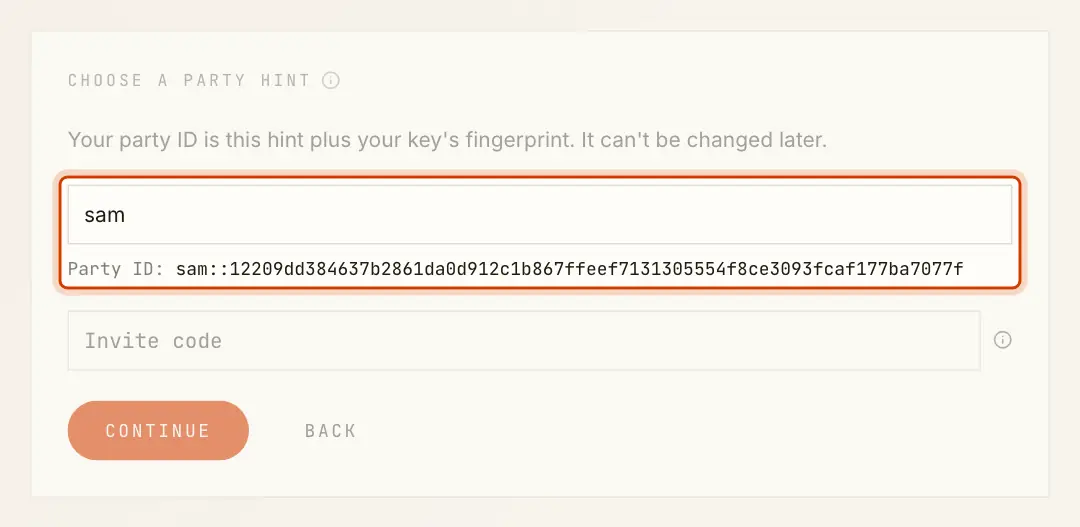
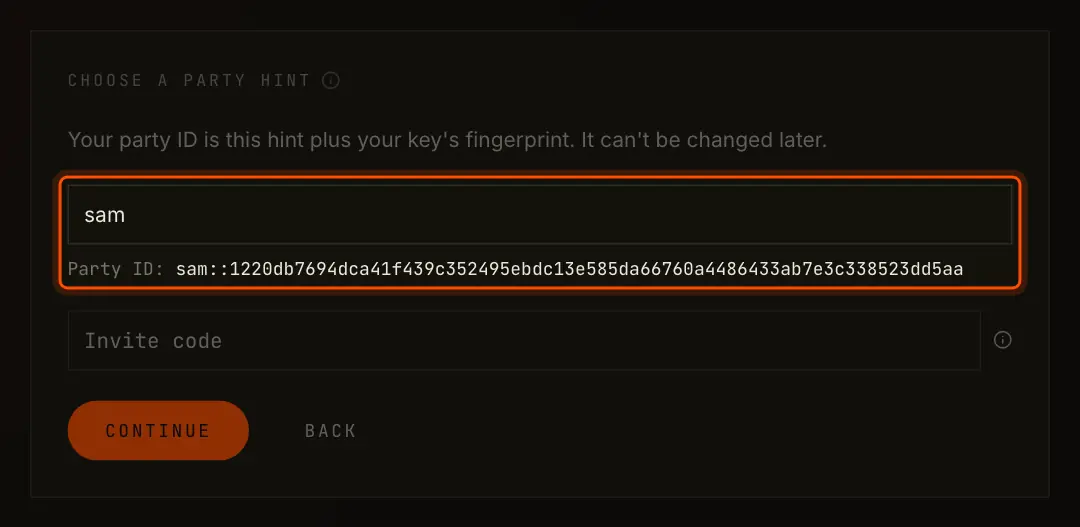
Your party ID is the party hint you choose, two colons, and
the fingerprint of your key: sam::1220dd2a…. Others recognize you by the hint; the
fingerprint ties the ID to your key. Neither can be changed later.
- A hint is 2 to 30 characters: lowercase letters, digits and dashes.
- Anything else becomes a dash, and capitals become lowercase:
Sam Leegivessam-lee. - The line under the field shows the party ID you will get, before you commit to it.
While sign-up is by invitation, the screen also has Invite code; ask a member for one. Select Continue. A wrong code is refused here, with , before anything is paid.
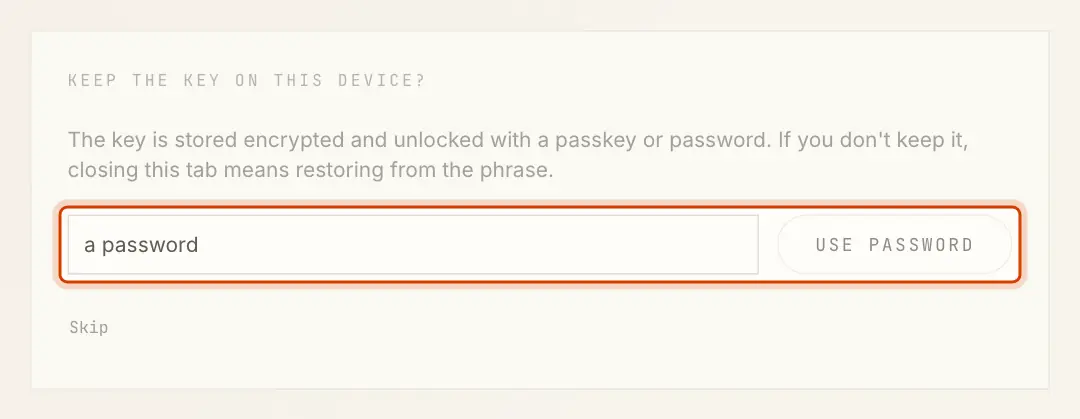
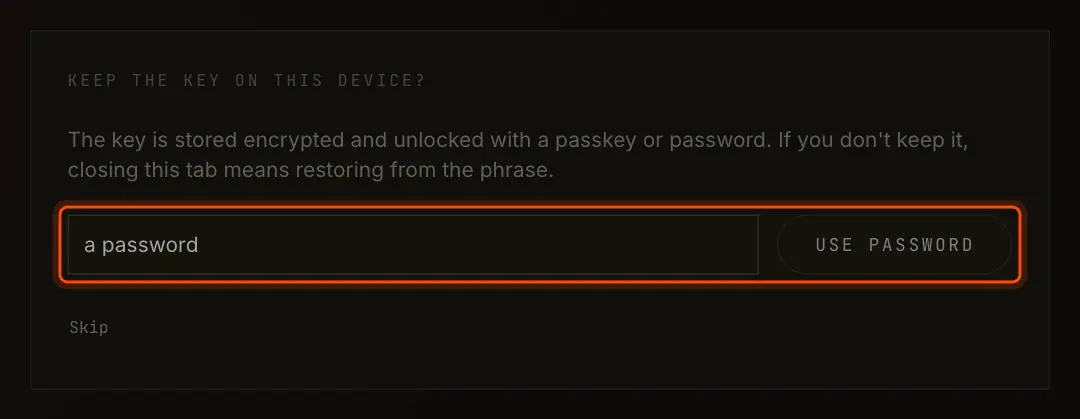
Keep the Key on This Device
offers three choices:
| Choice | What happens |
|---|---|
| Use passkey | Your device's passkey unlocks the key from now on. Shown only where the browser supports passkeys that can guard a key (the PRF extension). |
| Use password | A password of at least 8 characters unlocks the key. |
| Skip | Nothing is stored. The key lives in this tab only; closing it means restoring the phrase. |
Create Your Party
Creating a party is a transaction and uses network traffic. What happens next depends on the network.
Where Traffic Is Free
On DevNet and TestNet today, the step reads Create and the screen . The app creates the party right away and signs you in.
Where Traffic Is Charged
On MainNet, the step reads Top up and the screen .
- The balance shows how much has arrived of what a party costs today, for example
0.00 CC of 1.20 CC for a party. - Open Top up. It shows an Address and a Memo, each with a copy button.
- From any Canton wallet, send at least the amount shown to the Address, with the Memo exactly as shown in the transfer's memo (reason) field.
- Wait. The app checks for new transfers every 20 seconds. Once enough has arrived it shows and creates the party without asking again.
Anything above the cost stays on your balance. A transfer without the memo is not credited. See Balances and Traffic.
If you kept the key, you can close the page while you wait: unlocking the key later brings you back to this screen, where the app asks for the invite code again. If you skipped, the page says If the tab closes anyway, restore the phrase and choose a hint again: what you sent is credited to the key, not to the tab.
Signed In
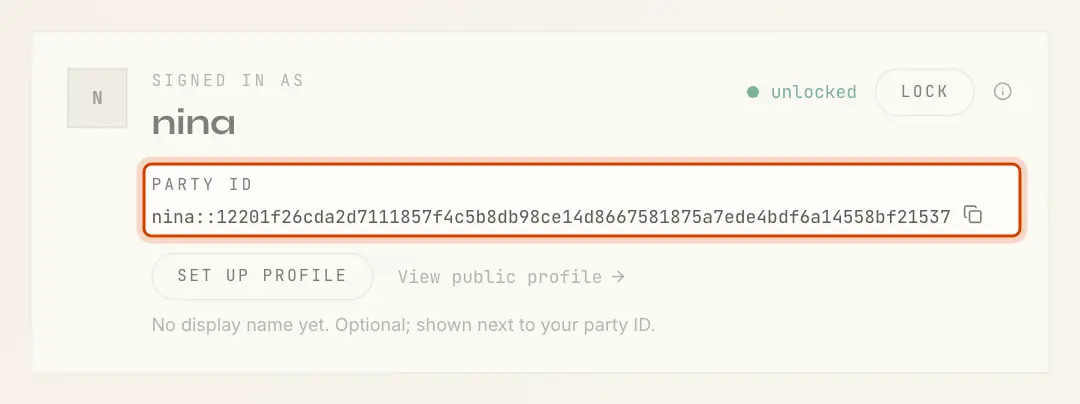
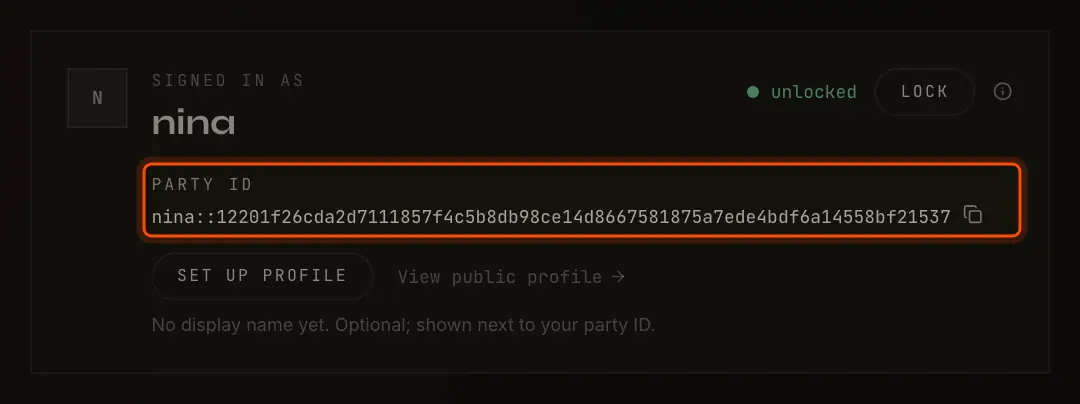
With your party created, the Wallet page shows, from the top:
- Signed in as with your display name or hint, unlocked and Lock;
- Party ID in full, with a copy button;
- Set up profile (or Edit profile) and View public profile;
- Balance, or on a free network ;
- Keys on this device.
To join a DAO, send your party ID to one of its members; they add you with a Members or Shares proposal.
Restore a Key
- On the Wallet page, select Restore key.
- Enter the 12 words, separated by spaces, and select Restore.
The app looks for your key's party on this network:
- The screen shows your party ID above . Choose, and you are signed in.
- (with this network's name). The phrase is valid, but no party was created with it on this network, typically because your party is on another network. Select Back to check the phrase or switch networks, or choose a hint to create a new party here.
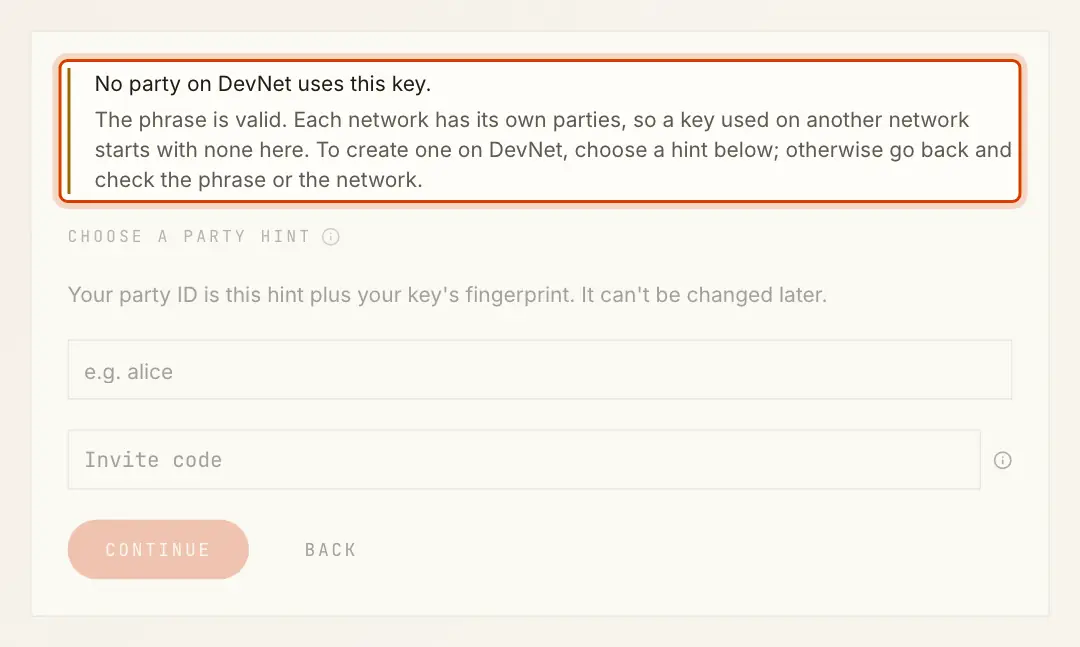
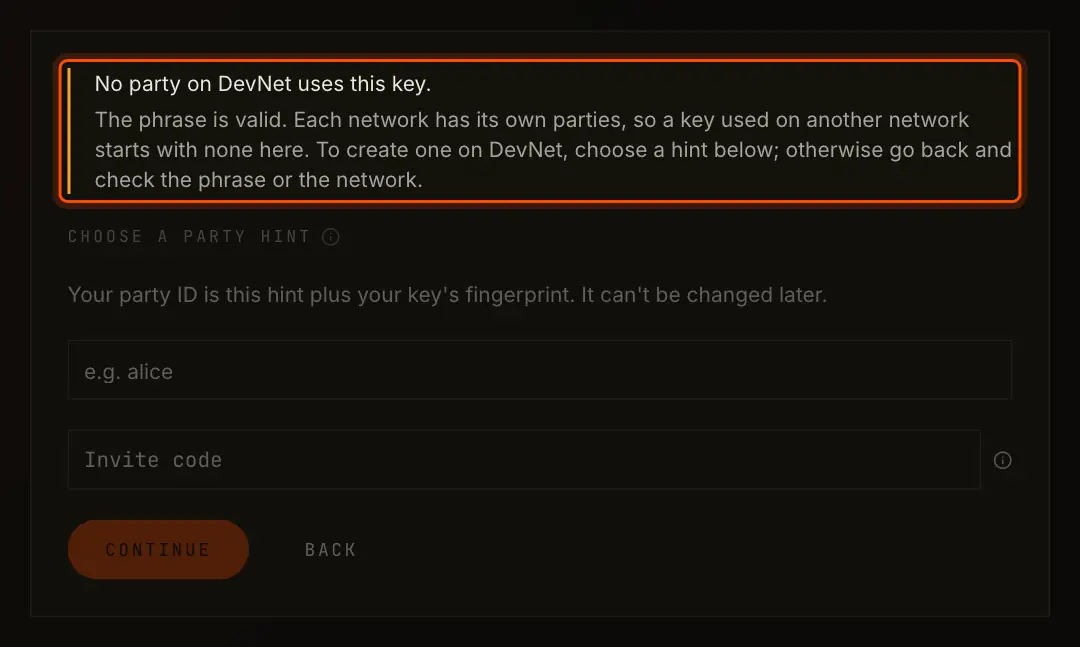
means a word is misspelled or missing, or the words are out of order.
Lock and Unlock
Lock removes the key from the page's memory; the encrypted copy stays on the device. The app also locks by itself after 15 minutes without a click, tap or key press, and when you close the tab, reload it or leave the site.
To unlock, open the Wallet page and select Unlock with passkey, or enter the password and select Unlock. Pages that need your key show the same form in place.


Several Keys on One Device
Keys on this device lists every key kept here, each its own party, with how it is locked and when it was added. From the list:
- Select offers another key to unlock; the current one is locked first.
- Create key and Restore key add another.
- Forget, then Yes, forget, removes a key from this device.
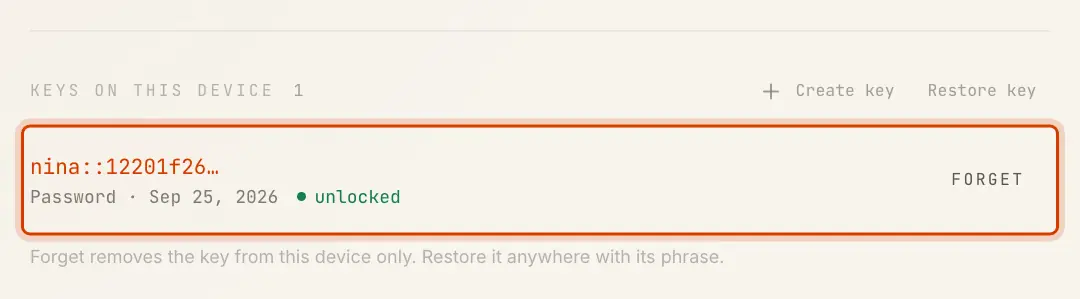
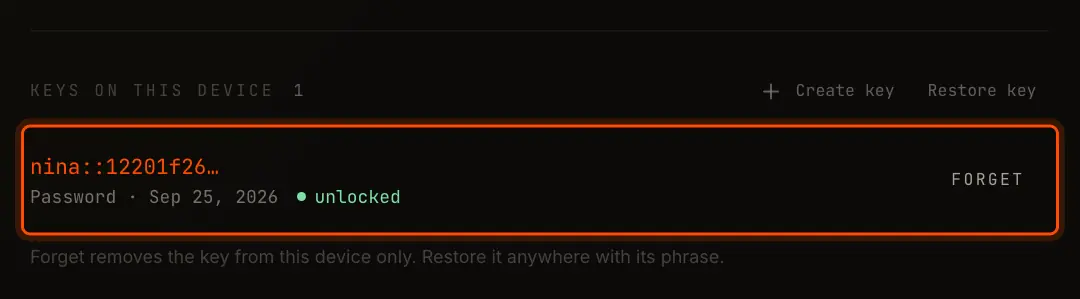
Forgetting removes the encrypted copy from this device only. Your party stays on the ledger, and the phrase restores it anywhere.