// Introduction
Quickstart
Create a key, a party and a DAO on TestNet, then make a decision and vote on it.
This page takes you from nothing to a decided proposal on TestNet in about five minutes. You need a browser, somewhere to write down 12 words, and an invite code from a member: sign-up is by invitation for now.
Create a Key
- Open test.syncvotes.com.
- Select Sign in in the header. The Wallet page opens.
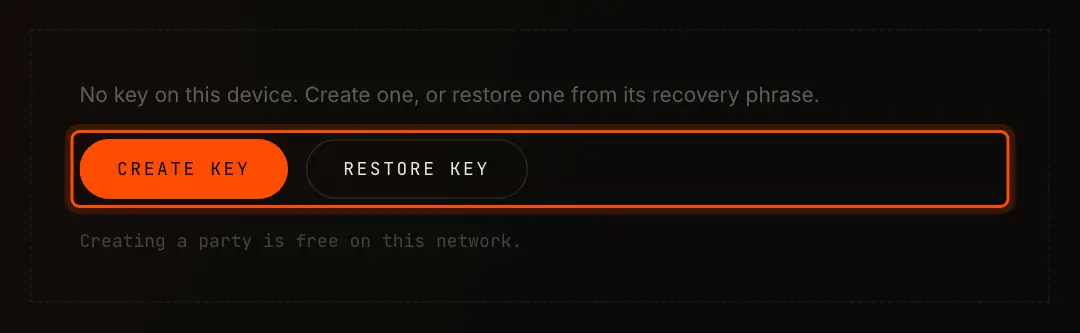
- Select Create key.
- Select Reveal, write down the 12 words in order, then select I have written it down.
- Enter the word the app asks for (for example, word 7) and select Continue.
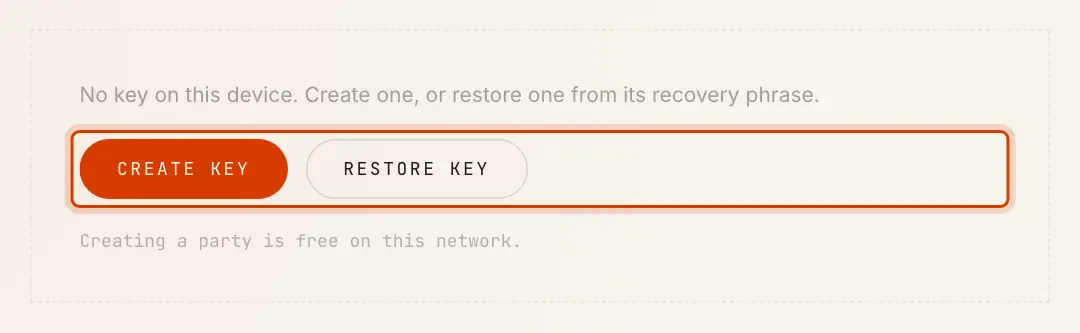
Create Your Party
- Type a party hint, such as
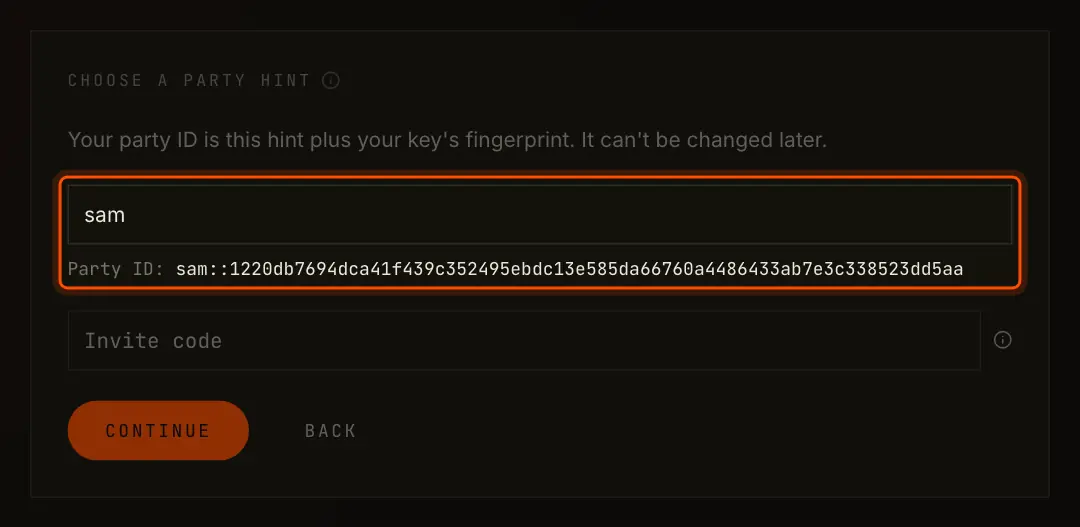
alice. Under it the app shows the party ID you will get,alice::1220…. - Enter your invite code in Invite code, and select Continue.
- Under , type a password of at least 8 characters and select Use password, or select Use passkey where it is offered.
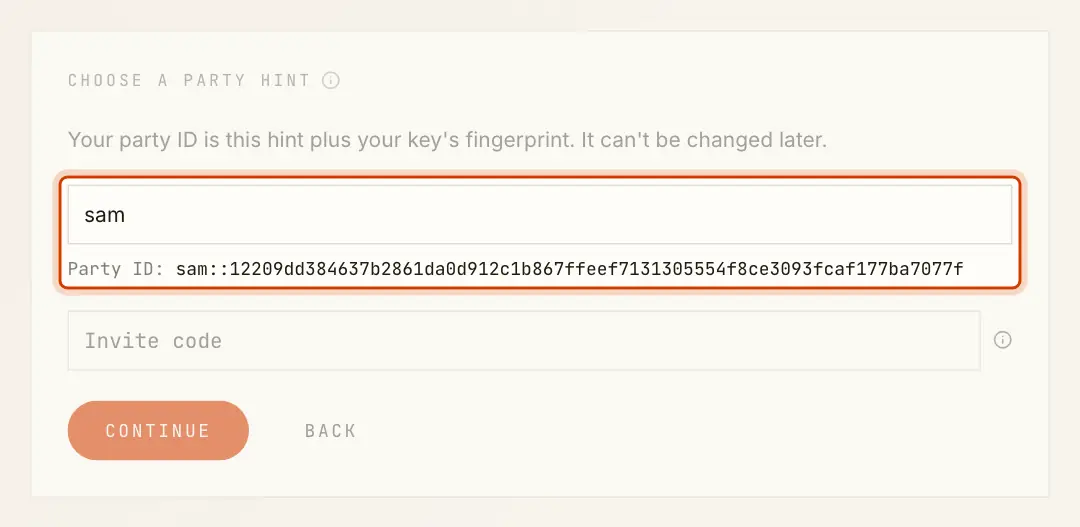
TestNet charges nothing, so the app creates your party straight away. When it is done, the Wallet page shows Signed in as and your party ID, and the header shows your hint.
Create a DAO
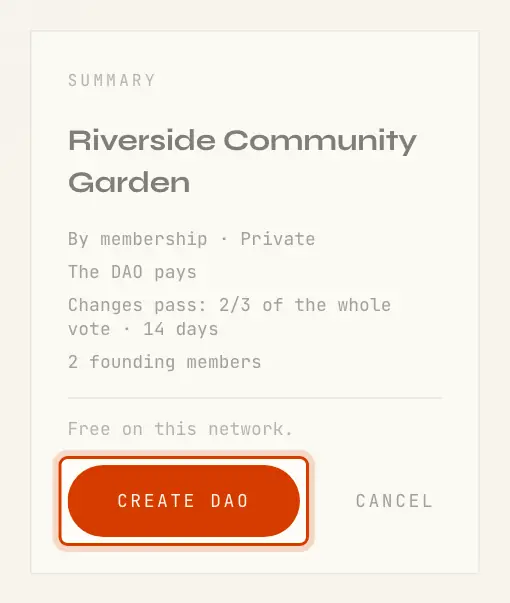
- Select My DAOs in the header, then Create DAO.
- Under Basics, enter a name, such as
Book Club. - Leave the rest as it is: By membership, Private, The DAO pays, and the Two thirds of the vote preset.
- Under Members you are already listed. To add others, type or paste their party IDs into Add party IDs. They must have created their party on TestNet first.
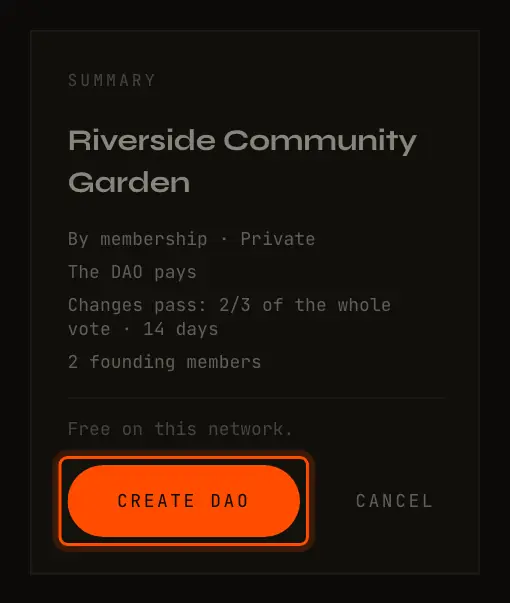
- Select Create DAO. Your key signs, and the DAO page opens.
Make a Decision
- On the DAO page, select New proposal.
- Leave the type on Decision.
- Enter a title, such as
Read Middlemarch next, and a description if you like. - Under Voting, leave the preset on Majority of the vote. The vote is open for 7 days.
- Select Create proposal. The proposal page opens, and the vote is open.
Vote
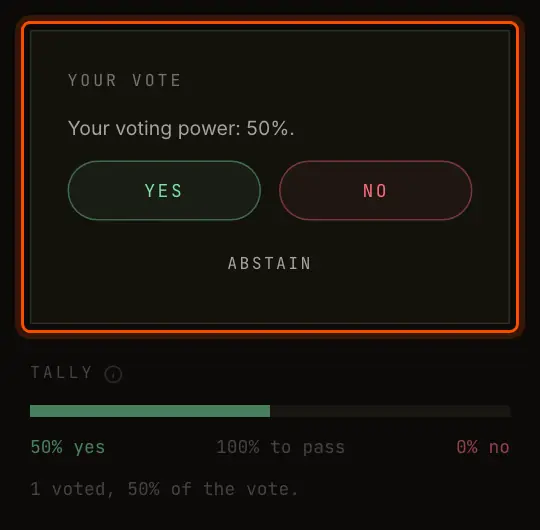
- Under Your vote, select Yes.
- Watch the Tally. If you are the only member, your yes is the whole vote, and the proposal shows Passed as soon as the app counts your ballot, usually within seconds.
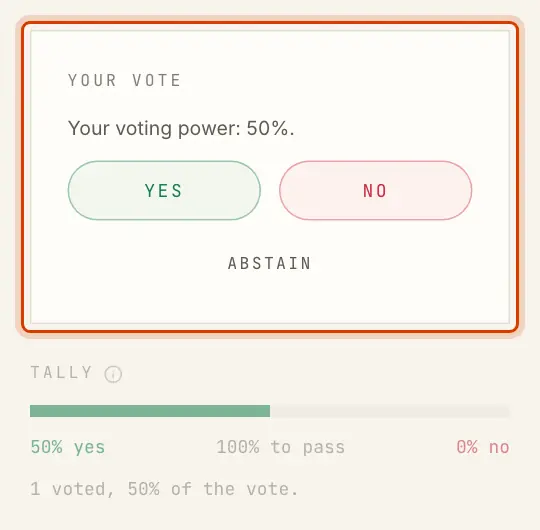
In a DAO of 5 members the same rule needs 3 yes votes. The proposal passes as soon as the third yes is counted, because the other 2 can no longer change the outcome.
Next Steps
- Create a Wallet: every wallet screen, and restoring a key.
- Create a DAO: voting by shares, public DAOs and who pays.
- Voting Rules: what each setting does, with examples.